The problem it solves
Your recruiters call candidates on Google Voice, but what a candidate says on a call stays in the call. There’s nothing to connect for Google Voice itself: your Gmail and the HireUp Chrome extension put each call’s notes and transcript on the candidate’s record in HireUp, next to their emails and messages, where you can search them.
1. Connect your Gmail to HireUp
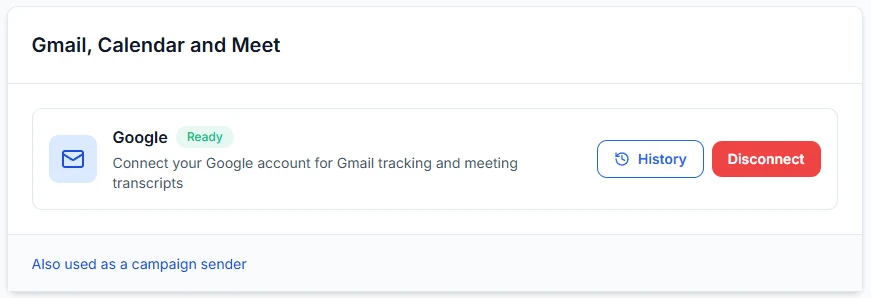
Each recruiter connects their own Google account in HireUp, under Settings → You → Connected accounts. Use the Google account that receives Google Voice’s call-notes emails, because that’s where HireUp finds your calls. For the full steps, read how to connect Gmail to HireUp.
2. Turn on Gemini call notes in Google Voice
In Google Voice, turn on Gemini call notes. After each call, Google emails “Notes from call with” and the phone number, from gemini-call-notes-noreply@google.com, to your Google account. That email is what HireUp reads, so it must reach the Gmail you connected in step 1. This step happens in Google Voice, and this guide shows HireUp screens only, so there’s no figure for it.
3. Which calls HireUp captures
When a call-notes email arrives, HireUp matches the phone number in its subject to someone in your HireUp contacts and records a Google Voice call on their record, with the notes. A call with a number that isn’t in your contacts isn’t captured, and no record is created. This happens in the background, so there’s no screen to show.
4. Add the full transcript with the Chrome extension
The notes are a summary. For the full transcript, install the HireUp Chrome extension (see Getting started) and stay signed in to voice.google.com in the same browser, with the same Google account as the Gmail you connected. Every 15 minutes, the extension checks for calls that don’t have a transcript yet, fetches up to 3 per check in a minimised background window, and adds each transcript to its call. Until then, the call shows its notes. This step happens in Chrome and Google Voice, so there’s no figure for it.
5. See the call on the candidate’s record
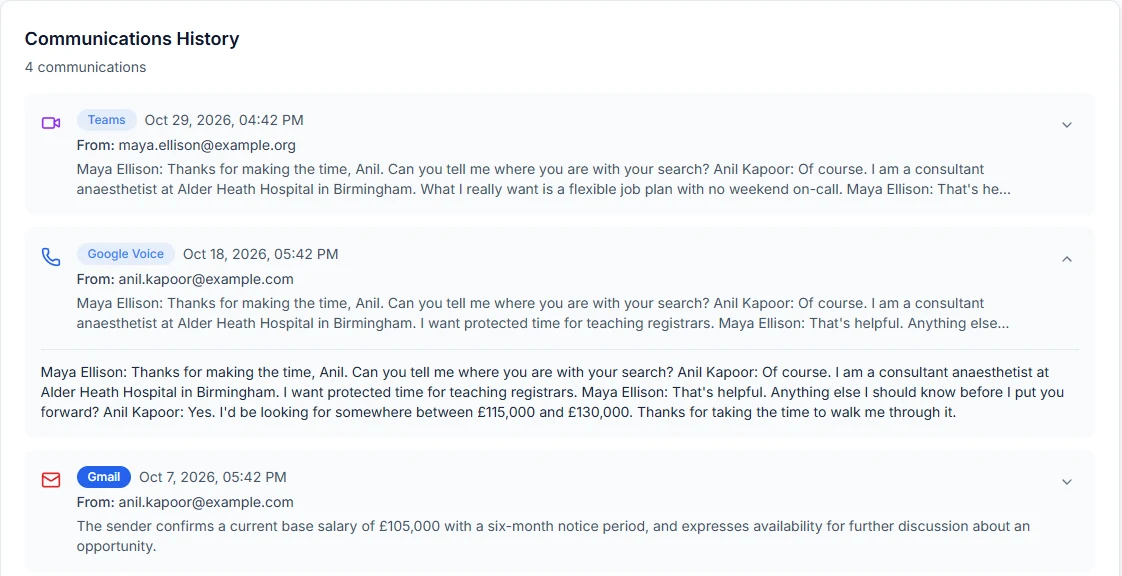
Open the candidate’s record and go to Communications History. The call shows as Google Voice, with its date, next to their emails, messages and meetings. Expand it to read the transcript.
6. Search what candidates said on calls
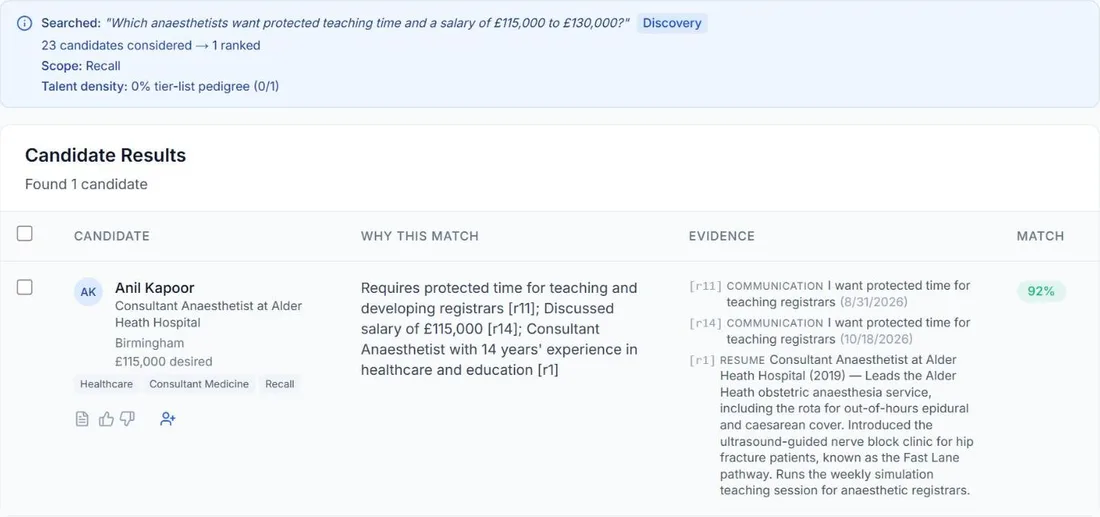
Ask Recall in plain English, for example which candidates want protected teaching time or a salary in a given range. HireUp ranks who fits and cites the call behind each match, with its date. For more on searching across every channel, read how to search what candidates told you across WhatsApp, LinkedIn, email and calls.
7. If transcripts stop arriving
- If the browser is signed out of Google Voice, or signed in to a different Google account, the extension pauses its checks for 6 hours.
- If you close the background tab while the extension is reading a call, it pauses its checks for 24 hours.
- HireUp tries a call’s transcript up to 3 times. After that, the call keeps its notes without a transcript.
- If no call is recorded at all, check that the number is in your HireUp contacts and that the call-notes email reached the Gmail account you connected.
Start your free trial. Want help? Book a setup call.
FAQ
Do I need to connect Google Voice to HireUp?
No. There's no Google Voice connection: HireUp reads the Gemini call-notes email in your connected Gmail, and the Chrome extension adds the transcript.
Does HireUp capture the full transcript or just the notes?
Both. The notes arrive with the email. The HireUp Chrome extension adds the full transcript when the browser is signed in to Google Voice with the same Google account.
Which Google Voice calls does HireUp capture?
Calls with a phone number that matches one of your contacts. Calls from other numbers aren't captured.
Why hasn't a transcript appeared yet?
The extension checks every 15 minutes. If the browser is signed out of Google Voice or on another Google account, it pauses for 6 hours, and if you closed its background tab, for 24 hours.
Updated for
This guide reflects the following releases: