The problem it solves
Candidate conversations live in each recruiter’s inbox, so nobody else on the team can see them, and candidate records go stale. Connecting Gmail puts every email with a candidate on their record in HireUp, where the whole team and Recall can find it. Your campaigns also go out from your own address, so replies come back to your inbox.
1. Connect your Google account
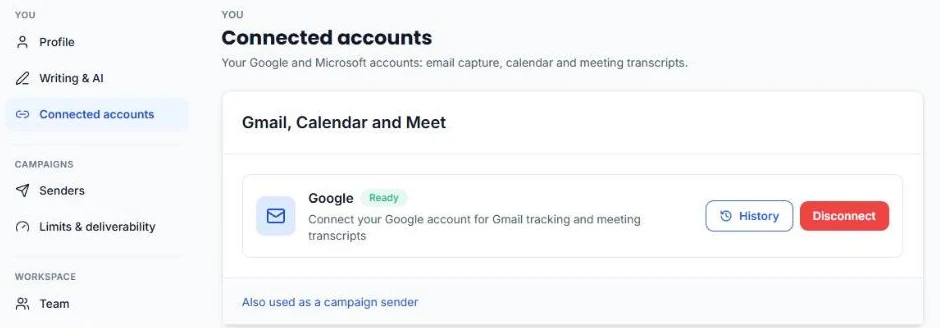
Each recruiter does this themselves, and no admin is needed. Go to Settings → You → Connected accounts and click Connect on the Google card (Gmail, Calendar and Meet). Google opens in a pop-up. Sign in with the same Google account as your HireUp login, and leave every box ticked so that your email, calendar and Meet transcripts all connect. The card then shows Ready.
2. Import your email history
On a first connect, the Import Google History window opens. Choose Last Week, Last Month (the default), Last 3 Months or Last 6 Months, then click Start Import. You can close the window with Close (Import continues in background). HireUp imports only emails with your existing contacts, up to 6 months back.
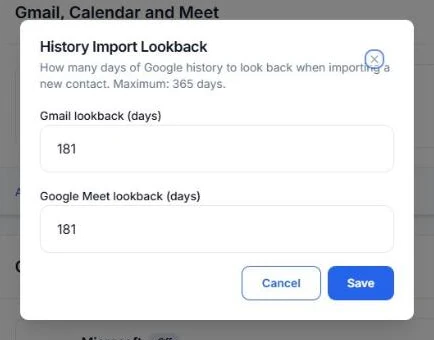
When you add a contact later, HireUp imports their last 90 days of email by default. To change that window, click History on your Google card and set Gmail lookback (days) to anywhere from 1 to 365 days.
3. Which emails HireUp captures
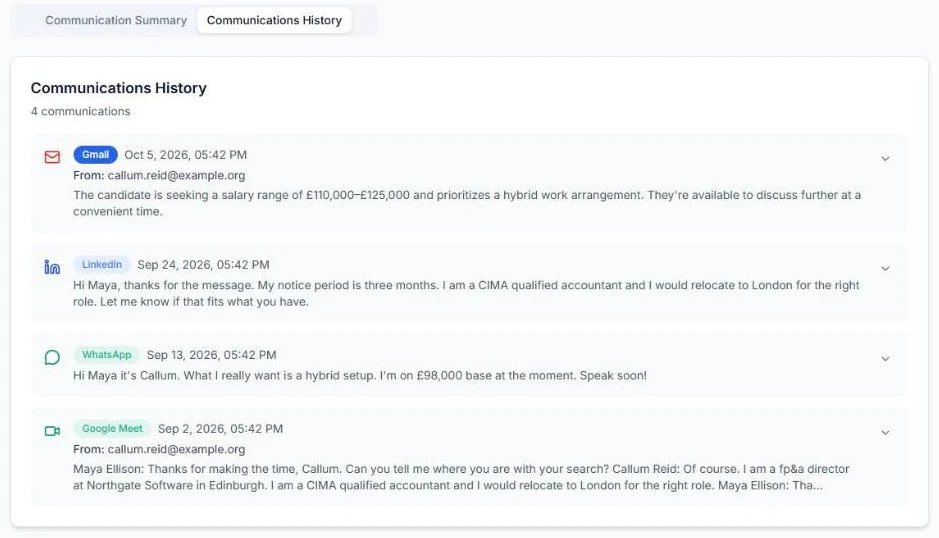
From then on, new mail syncs as it arrives. HireUp captures emails sent to or received from an address that matches one of your contacts. A reply from an unknown address is kept when its thread belongs to exactly one contact. Drafts and trash are skipped, and resumes attached to inbound emails are added to the candidate’s record.
4. Send campaigns from your own Gmail
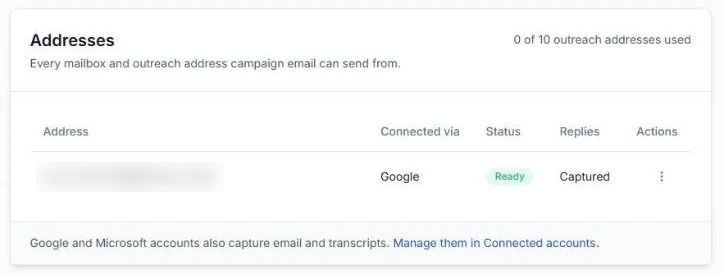
A connected Google account becomes your campaign sender. Campaigns go out from your Gmail address, and replies land in your inbox and on the candidate’s record. You can also add it under Settings → Campaigns → Senders → Add sender → Google or Microsoft mailbox.
5. Google Voice calls come through Gmail too
There’s no separate Google Voice connection. If Gemini call notes are on in Google Voice, HireUp reads the call-notes email in your connected Gmail and adds the call to the candidate whose phone number matches. See how to capture Google Voice calls in HireUp, including the full transcript.
6. If it won’t connect
The Google account must be the same as the email you sign in to HireUp with. Capital letters and a +suffix don’t matter. If you sign in to a different Google account, HireUp rejects the connection, and the pop-up may only say “An unexpected error occurred. Please try again.” Reconnect with the Google account that matches your HireUp login.
Start your free trial. Want help? Book a setup call.
FAQ
Does every recruiter need to connect their own Gmail?
Yes. Each recruiter connects their own Google account under Settings → You → Connected accounts. HireUp captures that person's emails with candidates, and campaigns send from their address.
Does HireUp import my whole inbox?
No. It imports only emails with your contacts. When you connect, you choose from the last week up to the last 6 months. For contacts you add later, it looks back 90 days, or up to 365 if you change it under History.
Can I connect a different Google account from the one I sign in with?
No. The Google account has to match your HireUp login email, or the connection is rejected.
How do I disconnect Gmail?
Go to Settings → You → Connected accounts and click "Disconnect" on the Google card. HireUp stops capturing your email and stops sending campaigns from that address.
Updated for
This guide reflects the following releases: