The problem it solves
A spec arrives as a PDF or in an email, and checking who in your database fits means reading it against each profile by hand. Requisitions turns the spec into criteria, scores the people already in your contacts against them and shows the evidence for each one. See what Requisitions does.
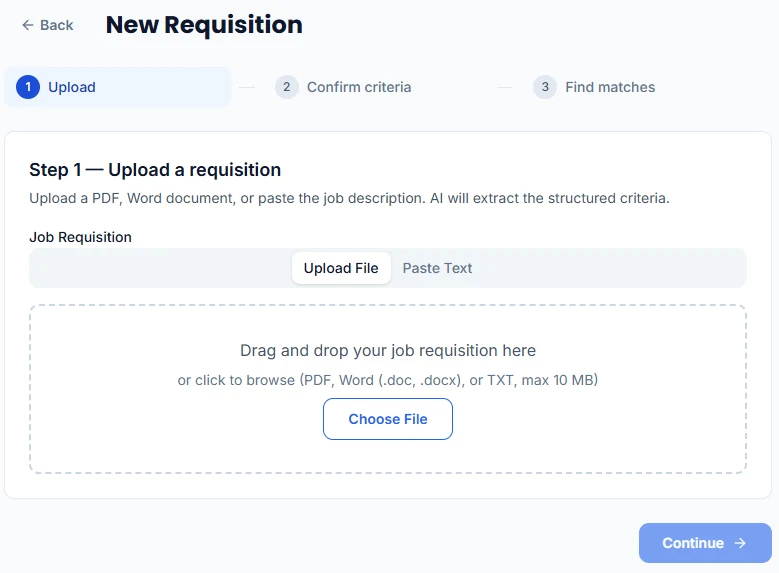
1. Upload or paste the job spec
On the Requisitions page, click New Requisition. On Upload File, drop in the spec or choose it: a PDF, a Word document (.doc or .docx) or a TXT file, up to 10 MB. If the spec came in an email, switch to Paste Text and paste it. Click Continue, and HireUp parses the spec in the background and moves to the next step when it’s done.
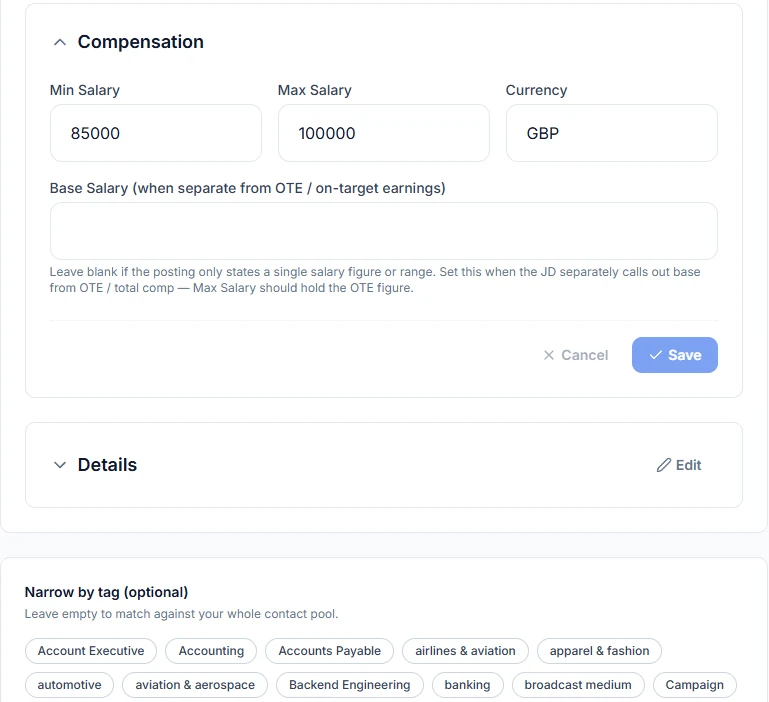
2. Check the criteria HireUp extracted
Step 2 — Confirm the extracted criteria shows what HireUp pulled out of the spec: the core role facts (workplace, location, salary range and visa sponsorship), then the Overview, Requirements, Screening & ideal background, Workplace preferences, Compensation and Details sections. Open any section and edit it if HireUp got something wrong or the spec left it out. Under Narrow by tag (optional), pick tags to match only contacts with those tags, or leave it empty to match against all your contacts.
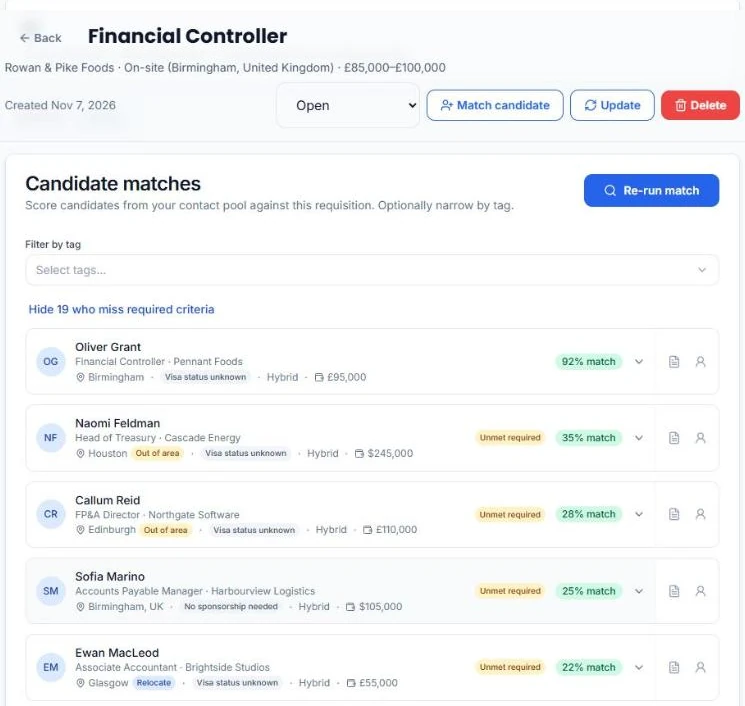
3. Find matches in your contacts
Click Find matches. HireUp scores your contacts against the requisition in the background and lists the people who fit, highest % match first. The results stay on the requisition’s Matches tab, so you can come back to them. To score again after you’ve edited the criteria or added contacts, click Re-run match, and use Filter by tag to change which contacts it scores.
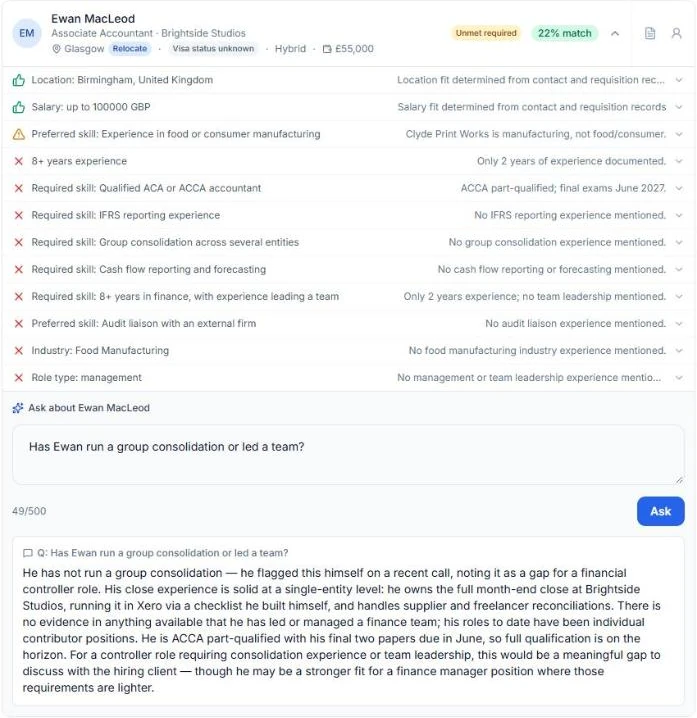
4. Check why each candidate matched
Expand a candidate to see the evidence for each criterion: a thumbs-up for Match, a warning for Possible match and a cross for Not matched, each with a line on where it came from. People who miss a required criterion are hidden at first; click Show N who miss required criteria to see them too. If the evidence doesn’t answer your question, type it into Ask about on that candidate and click Ask.
5. Score one candidate against the role
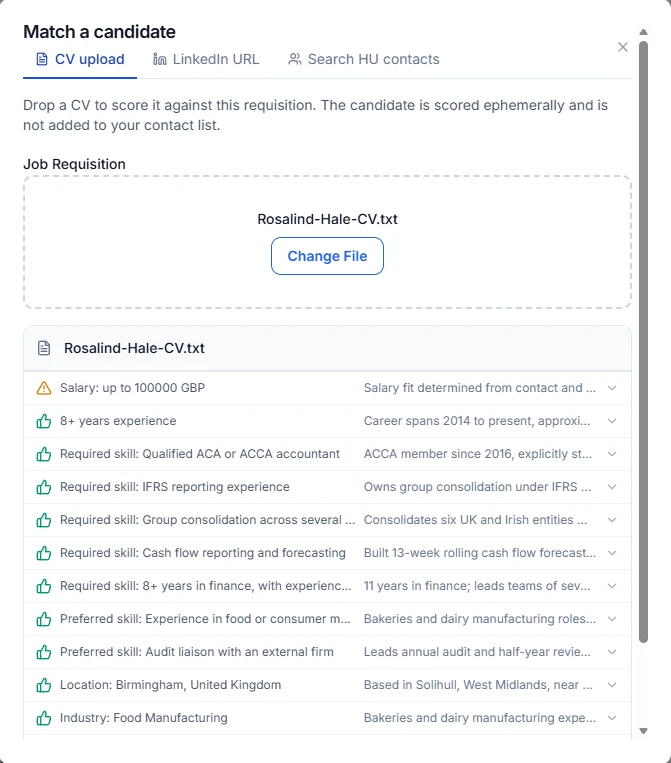
To check one person, click Match candidate on the requisition. Choose CV upload to score a CV without adding the candidate to your contacts, LinkedIn URL for a contact whose LinkedIn profile is already imported into HireUp, or Search HU contacts to pick someone from your contacts. Click Score candidate to see the same evidence for each criterion.
6. Keep the requisition current
The Lifecycle status in the requisition’s header is Open, On hold, Filled or Closed. Change it as the role moves: Filled and Closed requisitions move to the Archived tab on the Requisitions page. If the client sends a new version of the spec, click Update and upload or paste it to re-parse the requisition. On Professional and Scale, the same requisition can run in Workflow. For everything else, see what Requisitions does.

Start your free trial. Want help? Book a setup call.
FAQ
Why isn't a candidate I expected in the matches?
They may miss a required criterion: click Show N who miss required criteria to see them. Or a tag filter may leave them out: clear the tags and run the match again.
Can I score someone who isn't in HireUp yet?
Yes. Upload their CV in Match candidate and it's scored without adding them to your contacts. To score by LinkedIn URL, import the contact into HireUp first.
Can I change the criteria after HireUp parses the spec?
Yes. Edit any section on the requisition's Details tab, or click Update to re-parse it from a new file or text.
Which plans include Requisitions?
Essential, Professional and Scale, and the two-week trial. On Free, Requisitions shows in the menu with an Upgrade badge, and opening it shows an upgrade prompt. Workflow, which runs sourcing from a requisition, is on Professional and Scale.
Updated for
This guide reflects the following releases: