The problem it solves
What a candidate told you lives in emails, calls and messages, not in a field you can filter on. Finding “who told us last month they’re open to fintech in London” means remembering who said it, or scrolling through every thread. Recall lets you ask for that person in plain English and shows you where they said it. See what Recall does.
1. Tag the contacts you want Recall to search
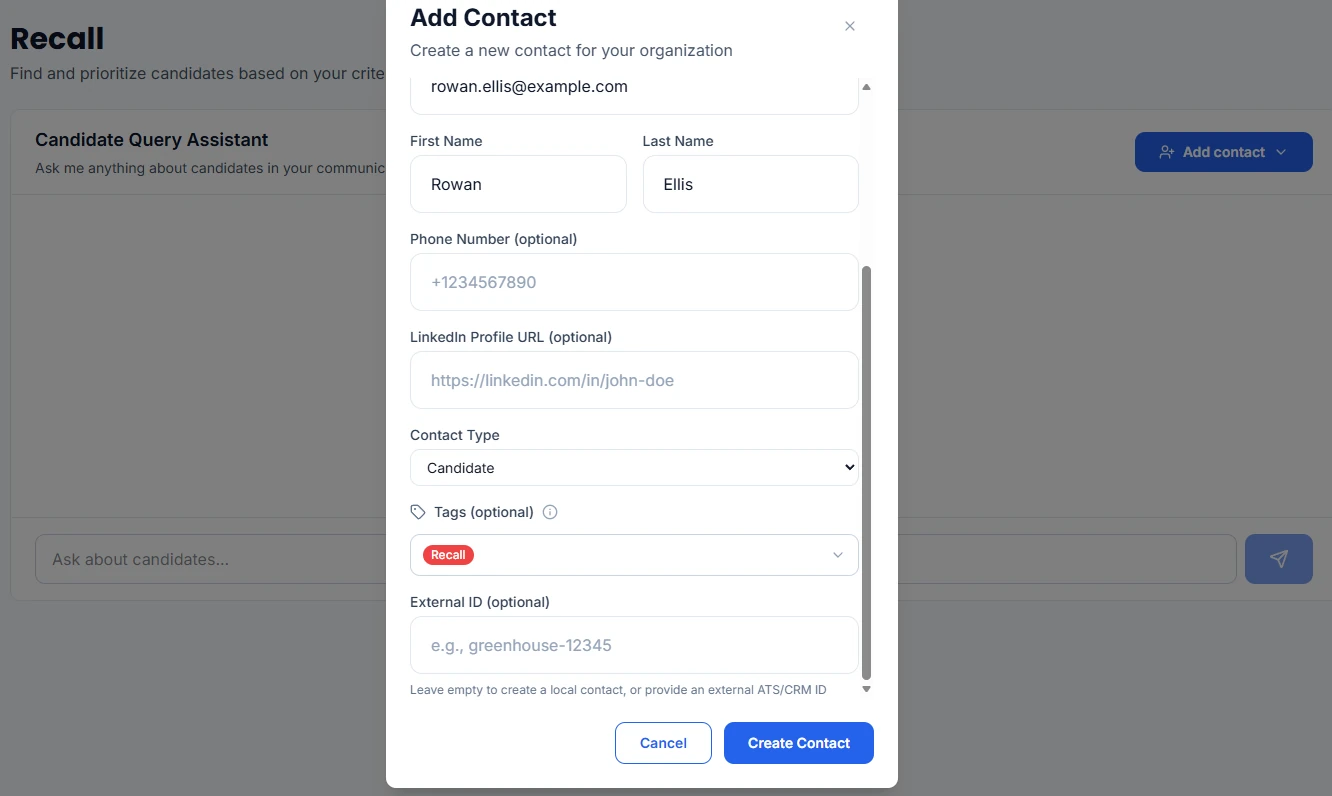
Recall searches the contacts tagged Recall by default, so tag the candidates you want in your searches. When you add a contact from the Recall page, with Add contact and then Manually, Upload CSV or an import from your ATS, the Recall tag is already filled in. You can change it before you save. To tag contacts you already have, tick them on the Contacts page and add the Recall tag to them.
2. Ask for the candidate in plain English
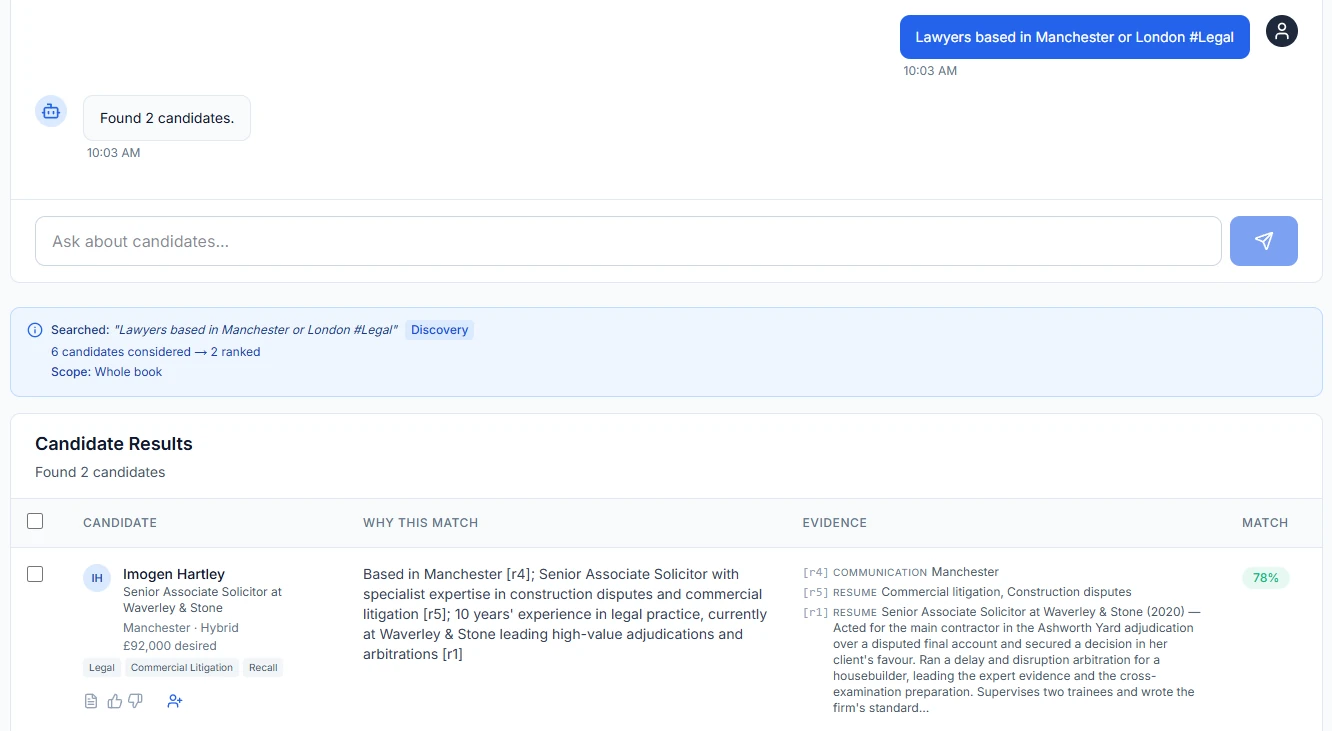
Type the brief into the Candidate Query Assistant the way you’d say it to a colleague, and press Enter. Recall searches what those candidates told your team in emails, LinkedIn and WhatsApp messages and calls, plus their resumes, LinkedIn profiles and ATS records, and ranks the people who fit. Add #tagname to include only contacts with that tag, or -#tagname to leave them out, for example -#placed to skip people you’ve already placed. A #tagname in your question replaces the default Recall scope for that search, so the banner in the screenshot reads “Scope: Whole book”: it searched every contact tagged Legal, not only those tagged Recall.
3. Check why each candidate matched
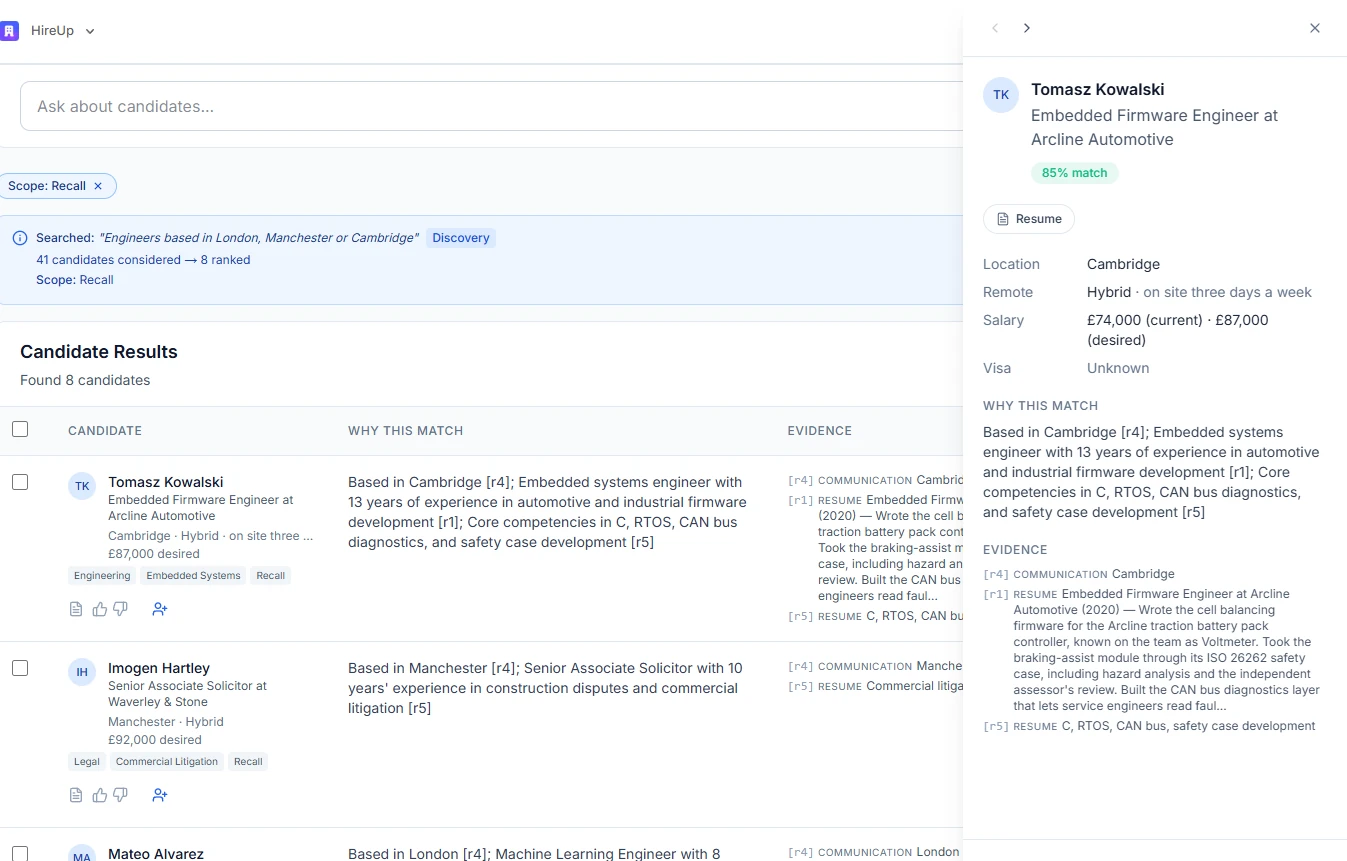
Each result has a match score, a Why this match explanation and its Evidence: citations to the conversation, resume, LinkedIn profile or ATS record the match came from, each opening in a new tab. Click a candidate’s name to open their details in a side panel, with the same explanation and evidence, and step to the next or previous result without closing it.
4. Search beyond your Recall tag
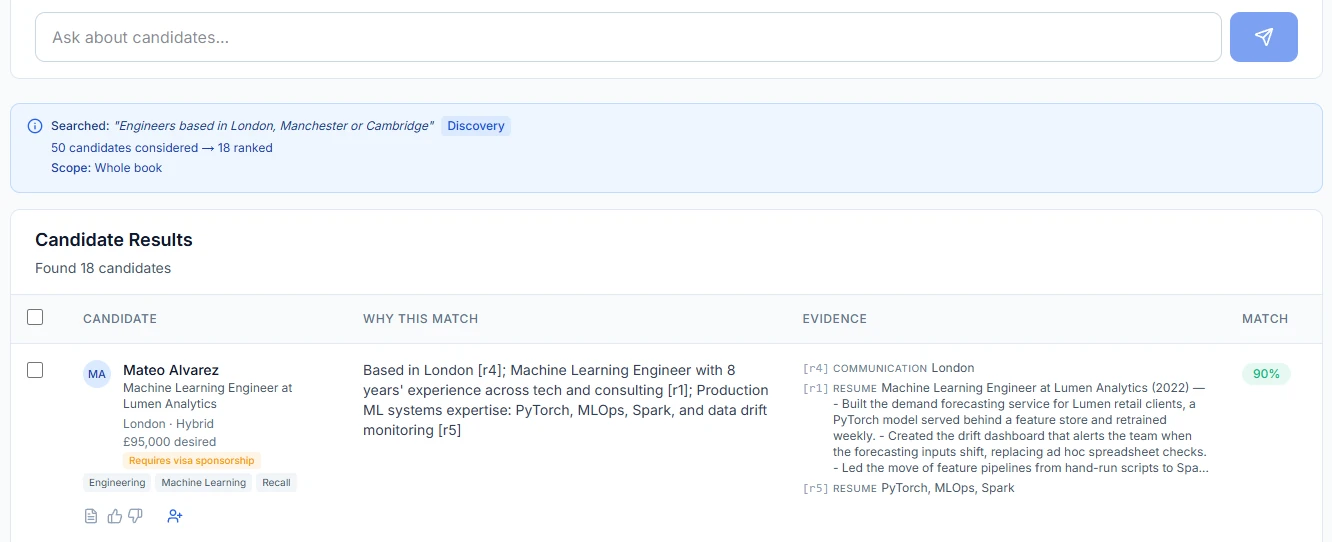
Above the results, a Recall chip and “Scope: Recall” show that the search ran over your Recall-tagged contacts. To search everyone, clear the chip. Recall runs the same question again across every contact and shows “Scope: Whole book”. Your next searches stay on the whole book until you press Reset Search.
5. Add the people who fit to a campaign
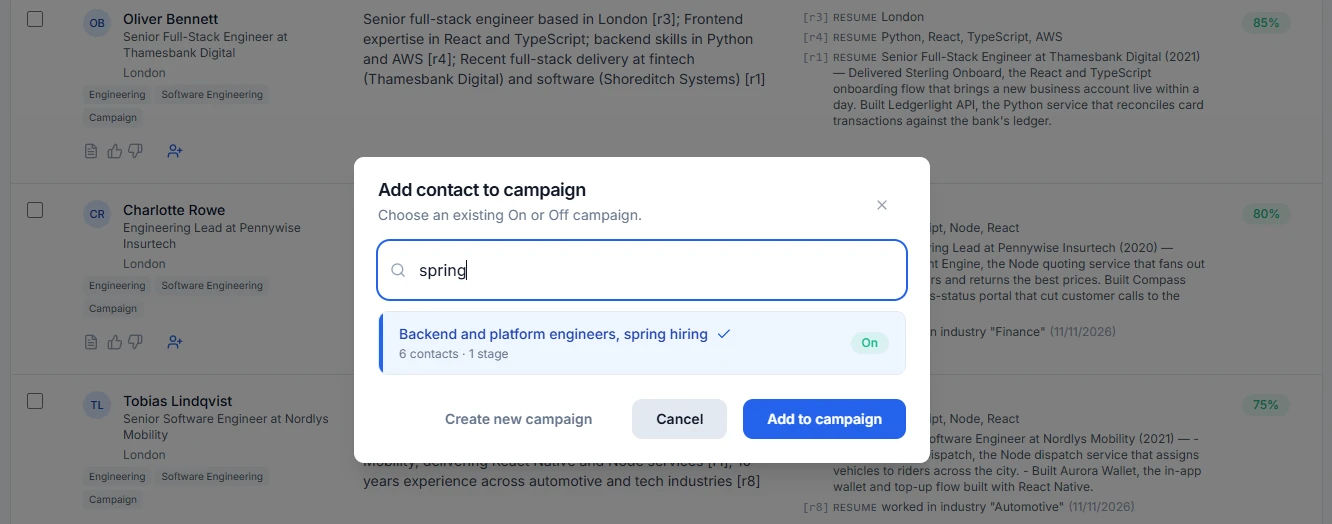
Add one candidate to a campaign from their row, or tick several and add them together. Pick an existing campaign, or create a new one and the people you ticked come with you. If a result was a good or bad fit, rate it with the thumbs up or down on its row. For everything else Recall does, see the Recall feature page.
Start your free trial. Want help? Book a setup call.
FAQ
Why doesn't a contact show up in Recall?
Recall searches contacts tagged Recall by default. Add the Recall tag to the contact, or clear the Recall chip above the results to search every contact. Once cleared, your next searches stay on the whole book until you press Reset Search.
Can I exclude candidates I've already placed?
Yes. If you tag them, add -#tagname to your question, for example -#placed, and Recall leaves contacts with that tag out.
How do I see the conversation behind a match?
Each result's Evidence lists citations to where the candidate said it. Click one to open that conversation, resume, LinkedIn profile or ATS record in a new tab.
Which plans include Recall?
Every plan, Free included, and the two-week trial. Plans differ in how many candidates Recall covers, shared across your organization: 100 on Free, 1,000 on Essential, 3,000 on Professional and 6,000 on Scale.
Updated for
This guide reflects the following releases: