The problem it solves
Your recruiters spend the day on Ringover, but what a candidate says on a call stays in the call or in someone’s notes. Connecting Ringover puts the transcript of every call with a candidate on that candidate’s record in HireUp, next to their emails and messages, and you can search it.
1. Get your API token from Ringover
In your Ringover dashboard, go to Developer → API, in the sidebar below Settings, and copy your API token. It’s a 40-character string of letters a–f and digits. This step happens in Ringover, and this guide shows HireUp screens only, so there’s no figure for it.
2. Add the HireUp webhook in Ringover
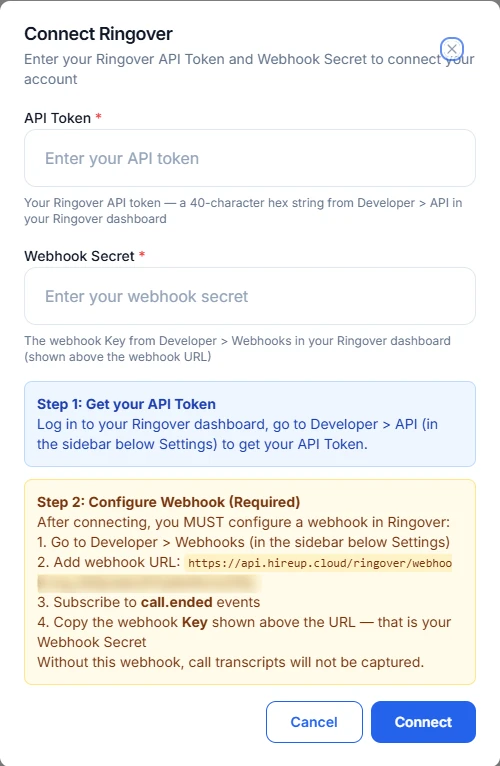
This step is required, and it comes before you connect because HireUp asks for the webhook’s key. In HireUp, go to Settings → Workspace → Integrations and, under Calling, click Connect on the Ringover card. The Connect Ringover dialog shows your webhook URL. It looks like https://api.hireup.cloud/ringover/webhook/<your org id>.
In Ringover, go to Developer → Webhooks, add that URL and subscribe it to the call and after-call events. HireUp imports a call when Ringover reports that its transcription or summary is available. The HireUp dialog currently mentions call.ended events; subscribe to the after-call events as well, because they’re the ones that carry the transcript. Then copy the webhook Key that Ringover shows above the URL: that’s your webhook secret. This step happens in Ringover, so there’s no figure for it: the URL you need is in the figure below.
3. Connect Ringover in HireUp
Only an admin can connect Ringover. In the Connect Ringover dialog, paste your API Token, and paste the webhook Key into Webhook Secret. Both are required the first time. Then click Connect. When you update the settings later, the dialog reads Update Ringover, and you can leave either field blank to keep the stored value.
4. Which calls HireUp captures
HireUp captures a call once Ringover has its transcript, and only when a phone number on the call matches someone in your HireUp contacts. A call with no matching contact is skipped, and no record is created. A call Ringover didn’t transcribe has nothing to capture.
Right after you connect, HireUp offers to import past calls: Last Week, Last Month (the default), Last 3 Months or Last 6 Months. Again, it imports only calls with matching contacts. The import keeps going in the background after you close the dialog. Admins can also change how many days back HireUp looks when it imports history for a new contact, from 1 to 365 days, in Manage → History.
5. See the transcript on the candidate’s record
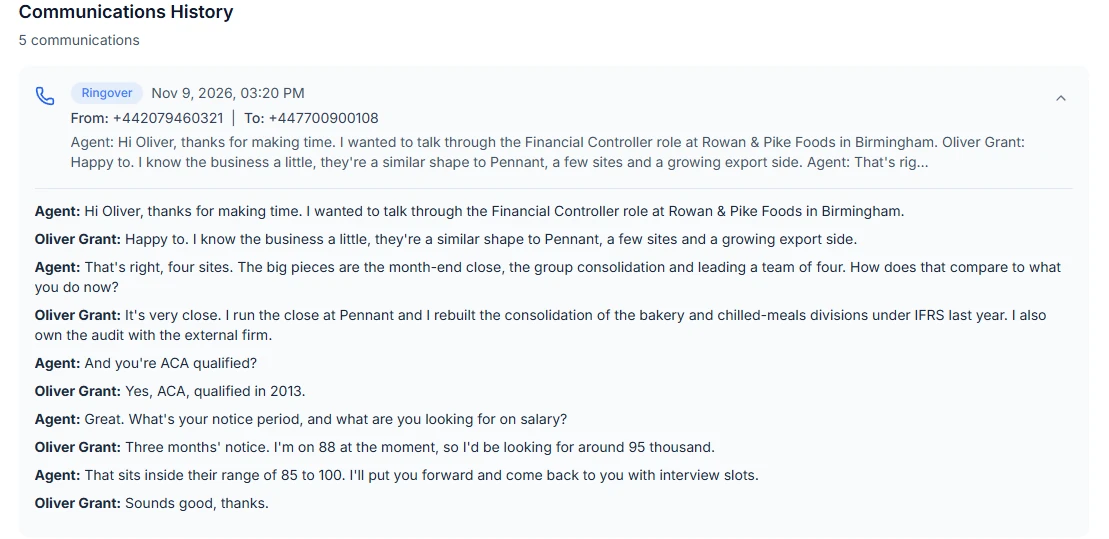
Open the candidate’s record. The call shows in their Communications History as a Ringover call, with its transcript, alongside their emails and messages.
6. Search what candidates said on calls
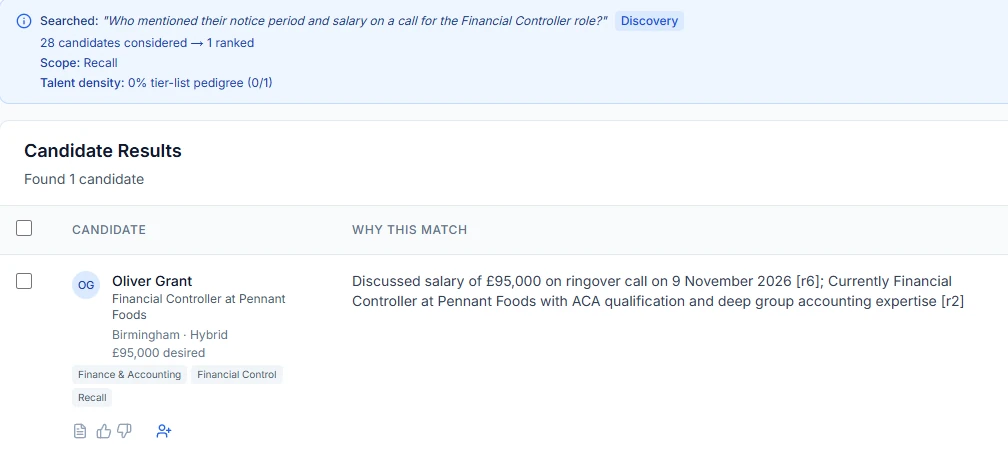
Ask Recall in plain English, for example who has mentioned a notice period or a salary range on a call. HireUp ranks who fits and cites the call behind each match, with its date. For more on searching across every channel, read how to search what candidates told you across WhatsApp, LinkedIn, email and calls.
Start your free trial. Want help? Book a setup call.
FAQ
Who can connect Ringover to HireUp?
Only a workspace admin, in Settings → Workspace → Integrations.
Does HireUp capture every Ringover call?
No. HireUp captures only calls Ringover has transcribed, with a phone number that matches someone in your HireUp contacts. It skips other calls and creates no record for them.
Why aren't my Ringover calls showing up in HireUp?
Check the webhook. In Ringover, under Developer → Webhooks, it must point to the URL shown in HireUp's Connect Ringover dialog and be subscribed to the after-call events. The webhook Key must match the Webhook Secret saved in HireUp. Also check that the number on the call belongs to a HireUp contact.
Can I bring in calls from before I connected?
Yes. Right after you connect, HireUp offers to import past calls from the last week up to the last 6 months. It imports only calls with matching contacts.
Updated for
This guide reflects the following releases: