The problem it solves
Your candidate records live in Loxo, but your conversations with candidates happen in email, LinkedIn, WhatsApp and calls. Connecting Loxo brings your Loxo lists into HireUp. Each conversation lines up with the right Loxo person, and a candidate you block in Loxo stays out of your outreach.
1. Find your agency slug, agency ID and API key
You collect three details in Loxo before you open HireUp. This step happens in Loxo, so there’s no HireUp screen to show for it.
- Agency slug. The part after
app.loxo.co/in your Loxo address. - Agency ID. The number in
app.loxo.co/agencies/<id>/people: open People in Loxo and copy the number from the address bar. - API key. In Loxo, go to Settings > API Keys.
2. Connect Loxo in HireUp
Only an admin can connect Loxo. Go to Settings → Workspace → Integrations and click Connect on the Loxo card. The Connect Loxo ATS form asks for your Agency Slug, Agency ID and API Key. Once Loxo is connected, the card shows Ready, and Manage → Configure opens the same fields as Update Loxo ATS.
When you update the settings later, leave the API key blank to keep the current one. HireUp connects one ATS per workspace: to switch from another ATS, disconnect it first.
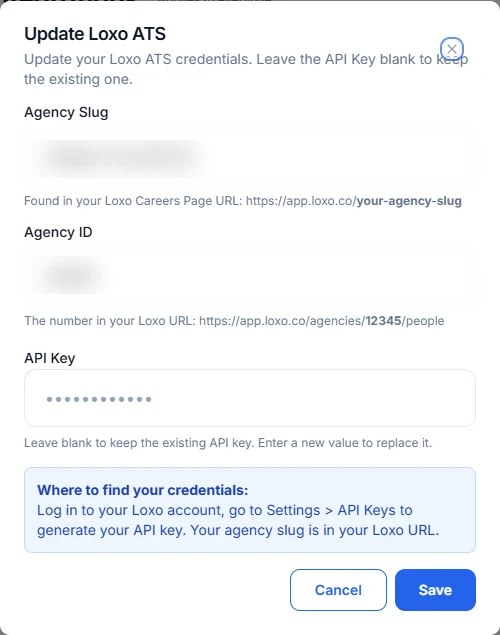
3. Choose a Loxo list to import
Open Contacts, click Import Contacts and choose From Loxo List. Select Loxo List shows your saved Loxo lists, and you can search them by name. Pick one and click Next.
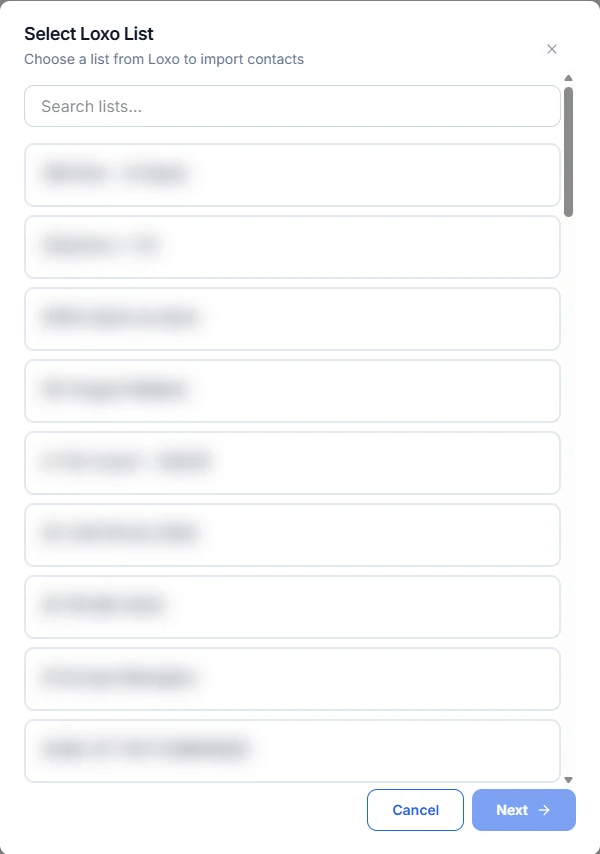
4. Add tags and import
Add Tags lets you tag everyone you import; it’s optional. Click Next to reach Confirm Import, check the list, then click Import Contacts. HireUp shows Importing Contacts until it reaches Import Complete. Contacts already in HireUp are skipped. A large list keeps importing in the background after you close the dialog.
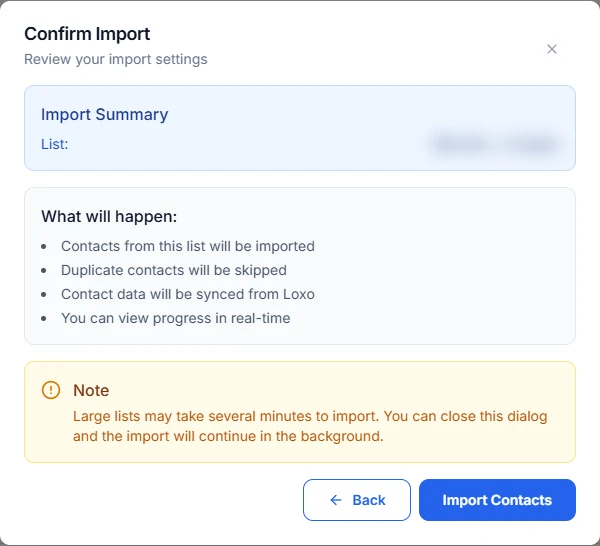
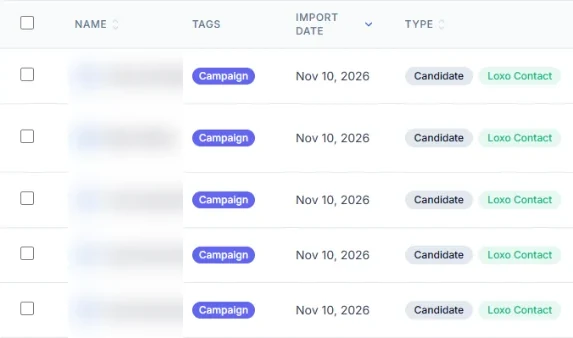
5. See your Loxo contacts in HireUp
Imported contacts show a Loxo Contact badge and come with their work history, education, salary and location from Loxo. HireUp matches each candidate conversation to the right Loxo person by email or phone.
A candidate you block in Loxo with no end date is hidden in HireUp. A candidate blocked until a date is hidden until that date.
Start your free trial. Want help? Book a setup call.
FAQ
Who can connect Loxo to HireUp?
Only a workspace admin, in Settings → Workspace → Integrations.
Where do I find my Loxo agency slug and agency ID?
Your agency slug is the part after app.loxo.co/ in your Loxo address. Your agency ID is the number between /agencies/ and /people in the address of your Loxo People page.
Can I connect Loxo and another ATS at the same time?
No. HireUp connects one ATS per workspace. To switch to Loxo, disconnect the other ATS first.
What happens to a candidate I block in Loxo?
HireUp hides them. A block with no end date hides them in HireUp, and a block with an end date hides them until that date.
Updated for
This guide reflects the following releases: